PDF File Reader
Dream ToolsProductivity
3.4140.00 Reviews
- Version
- 1.2.0
- Installs
- 10.00M
- Age Rating
- Everyone
Screenshots
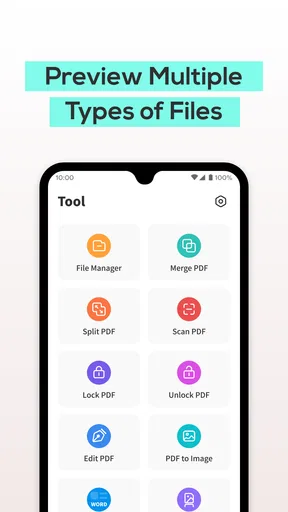
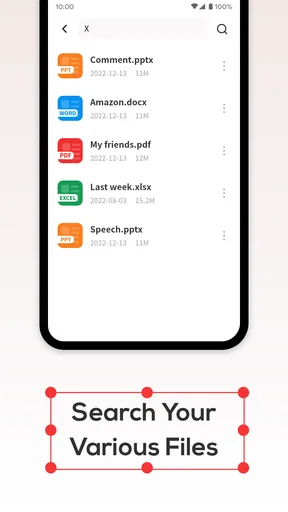
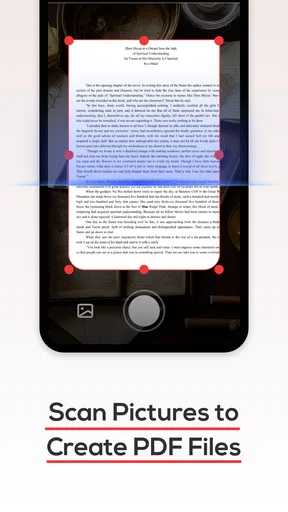
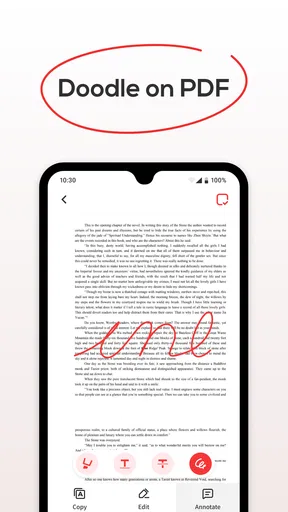
Our Review of PDF File Reader
 Analysis by Appyee
I spent time with PDF File Reader as a straightforward productivity app from Dream Tools, and its appeal is easy to understand: it is built around getting a PDF open without turning the task into a larger project. That focused approach can be useful when I only need to check a document, read a handout, or open a file someone has sent to my phone. It is free, rated for Everyone, and has reached over ten million installs, so it is clearly aimed at a broad audience rather than a specialist document workflow.
My overall impression is mixed but practical. The app does the basic job its name suggests, and its modest learning curve makes it approachable. At the same time, the average rating of 3.4 shows that a simple purpose does not automatically mean a perfect experience for every reader. I would consider it a useful basic reader, especially on an older Android device, but I would not treat it as a complete replacement for a full document-management or editing suite.
Reading and navigation in everyday use
The first strength is the narrow focus. When I want to open a PDF rather than edit, sign, convert, or organize a whole library, a dedicated reader can feel less distracting than a large office package. PDF File Reader is in the productivity category, but it behaves more like a small utility I reach for between other tasks. That makes sense for receipts, school notes, instruction sheets, travel documents, and work attachments.
A realistic example is receiving a PDF in a messaging app while away from a computer. I can use a reader such as this to check the page, confirm a detail, and move on instead of waiting until I have access to a desktop. It is also handy when a phone has no suitable app associated with PDF files. The value is not in replacing every tool on the device; it is in reducing the friction between receiving a document and seeing what is inside.
For comfortable reading, I found it helpful to approach each file according to its design. A text-heavy document is naturally easier to read than a scanned page or a complex form. If a PDF was created with selectable text, moving through it generally feels more natural than dealing with an image of a page. That distinction matters because a reader can display a document without being able to make poorly scanned content genuinely easy to use.
I also recommend opening important documents before you need them. This is a small habit, but it exposes problems such as an unexpectedly large file, an unusual layout, or a page that is difficult to inspect on a phone. For a last-minute boarding document, medical instruction sheet, or work attachment, checking it in advance is more reliable than assuming every PDF will behave equally well.
The app’s current version is 1.2.0, and it supports Android 6.0 or later. That broad compatibility is relevant for people keeping an older phone in service. Newer, more elaborate PDF tools often make more sense on modern hardware, while a focused reader can be a better fit when storage, processing power, or familiarity with newer interfaces is limited.
Navigation is most comfortable when I keep my expectations realistic. I see this as a viewing tool first, not a research environment. If I need to compare several documents, extract information repeatedly, annotate every page, or maintain a carefully sorted archive, I would rather use a more comprehensive PDF application or a computer. PDF File Reader makes sense for opening and checking; it is less convincing as the center of a document workflow.
What the simple design means for different readers
A person who prefers a small number of clear actions may appreciate the app’s direct purpose. There is less conceptual overhead than in software that combines reading with editing, cloud storage, scanning, signatures, and collaboration. For someone who is not confident with document apps, that simplicity can make the first step less intimidating: select a file, open it, and read.
However, simplicity should not be confused with guaranteed accessibility. People who rely on large text, strong contrast, spoken output, keyboard navigation, or precise reflow need to judge the app against their own device settings and the documents they open. A PDF is a fixed-layout format, so even a capable viewer may not turn a crowded page into an ideal mobile reading experience.
My practical advice is to test one document that represents your real needs. Do not use a clean, short brochure as the only test if you mainly read scanned forms or dense manuals. Try the kind of file you actually receive, then check whether the text remains manageable at your preferred zoom and whether moving between pages feels predictable.
Motor, sensory, and situational access
For users with limited dexterity, the main question is how much repeated pinching, dragging, and precise tapping a document requires. A PDF with wide margins and large text may be easy to handle, while a page designed for paper can force constant zoom adjustments. That is a limitation of the format as much as of the app, but it still affects the real experience.
I found that the best workflow is to prepare the viewing conditions before reading closely. Holding the phone steadily, choosing a comfortable orientation, and enlarging the page before trying to follow small text can reduce unnecessary movements. If a document is particularly dense, reading it in short sections is less tiring than repeatedly zooming in and out while trying to keep your place.
People with low vision may benefit from the phone’s own display settings, but the result depends heavily on how the PDF was made. A text-based document can remain reasonably legible when enlarged. A scanned page, a table, or a form can become awkward because increasing the size also means seeing less of the page at once. That trade-off is important: more readable characters can require more navigation.
For readers sensitive to visual clutter, the document itself is often the deciding factor. PDF File Reader is not a substitute for a simplified or reformatted version of a file. If a publisher has packed a page with columns, tiny labels, or decorative elements, the app can show that design, but it cannot automatically make the information hierarchy better. In those cases, a reflow-capable reader or an accessible HTML version may be a better choice.
Spoken access deserves the same careful distinction. A PDF may contain real text that a device’s screen reader can interpret, or it may be nothing more than a photograph of a page. The app’s ability to open the file does not by itself guarantee that every word will be available to assistive technology. If spoken reading is essential, I would test a representative document rather than assume that the file extension tells the whole story.
Motor access also includes the effort of finding the right file. On a phone filled with downloads, attachments, and duplicate documents, locating a particular PDF can become more tiring than reading it. I recommend keeping important files in a clearly named folder and removing obvious duplicates. That organization is outside the reader itself, but it makes a noticeable difference when the goal is quick, low-effort access.
Using it away from a desk
Situational access is where a basic reader can be surprisingly useful. I can imagine using it in a waiting room, on public transport, or during a short break when a laptop is unavailable. A phone is easier to carry than a full computer, and a focused PDF tool suits brief checks: confirming an appointment instruction, reviewing a delivery document, or looking up a page in a guide.
That convenience has boundaries. Small screens, glare, movement, and poor lighting can all make a document harder to use. Reading a long contract on a phone while standing is not the same as reviewing it at a desk. For urgent information, I would open the file before entering a low-connectivity or visually difficult situation and make sure the relevant page is easy to find.
The app can also be useful for people sharing devices or using an older handset. Its free price removes one obvious barrier to trying it, and the Everyone content rating makes it suitable for a general household audience. Still, free does not mean every person will find it comfortable. Someone who needs advanced organization, editing, document conversion, or specialized accessibility controls may save time by choosing a different kind of application from the start.
Travel is another good test case. A downloaded itinerary, venue map, or policy document can be easier to consult in a dedicated reader than through a browser tab that has disappeared among other pages. I would keep a backup copy in the phone’s normal file storage, use clear filenames, and open the document while I still have time to solve any compatibility issue. Those steps make the app part of a dependable routine rather than a last-second gamble.
Where the experience still creates barriers
The central barrier is that opening a PDF and using its information are not identical tasks. A reader can succeed at the first while the second remains difficult because of document structure, tiny typography, scanned images, or complicated forms. This is especially important for users who need predictable navigation or spoken access. The most honest way to evaluate the app is file by file, not by assuming that every PDF offers the same experience.
Another limitation is the app’s narrow role. If I need to mark a passage, fill in a form, sign a document, extract pages, or collaborate with someone, a fuller PDF suite is likely to be more suitable. Using a basic reader for those jobs can create extra steps: switching apps, locating the same file again, and making sure the edited copy is saved where I can find it. The lightweight approach is helpful only when the task really is viewing.
People who manage many documents may also find a dedicated reader too limited as a long-term system. A professional document workflow usually benefits from strong search, tagging, synchronization, version control, and editing tools. I would not choose this app as the only place to manage important records. I would use it as one accessible entry point for opening files, while keeping the originals organized elsewhere.
The rating of 3.4 from around eight thousand ratings is a useful signal to keep expectations measured. It does not tell me that the app is unusable, but it does suggest that the straightforward concept may not satisfy every device, file type, or personal workflow. With around one hundred forty written reviews and more than ten million installs, there is substantial public adoption, yet popularity alone is not proof that it matches a reader’s particular accessibility needs.
I would also avoid judging it solely on a single successful opening. Try several documents: a normal text PDF, a scanned page, a form, and a file with tables or multiple columns. Check how much effort each one demands. If one of those formats is central to your daily life, that test should carry more weight than the app’s general reputation.
My inclusive verdict
I see PDF File Reader as a sensible starting point for people who want a free, uncomplicated way to open PDF documents on Android. Dream Tools has kept the purpose easy to understand, and that can support users who feel overwhelmed by multipurpose office apps. It is particularly reasonable for occasional reading, older devices, quick checks, and situations where carrying a computer is impractical.
My recommendation becomes more cautious when accessibility depends on advanced behavior rather than basic display. If you need dependable spoken reading, automatic reflow, powerful document search, annotations, form completion, or detailed file organization, I would compare it with a specialized alternative before making it your main reader. The right choice depends less on the app’s label and more on the documents you handle every week.
The most useful test is your own everyday PDF. Open it in the app, enlarge the text to a comfortable level, move through several pages, and try the phone’s accessibility settings if you use them. Notice whether you can return to the right place without strain. That short trial reveals more than a generic promise of easy reading.
In the end, I would recommend it to a friend who asked for a simple PDF opener, with the clear warning that “simple” also means limited. It is not the best answer for every ability, every document, or every context, but it can remove an unnecessary obstacle when the only job is viewing a file. For occasional readers who value a free and familiar utility, it is worth trying; for demanding or assistive workflows, a more specialized reader is the safer choice.
PDF File Reader is available as a free productivity app from Dream Tools, with an Everyone age rating and support beginning at Android 6.0. Its current version is 1.2.0, and its strongest quality remains the same one that defines the whole experience: it keeps PDF viewing focused. Whether that focus feels refreshing or restrictive will depend on how much more you expect to do after the document opens.
Verdict
Strengths of PDF File Reader
- Opens PDFs quickly, even when switching between several documents.
- Search results are highlighted clearly throughout the document.
- Supports pinch-to-zoom for comfortable reading on smaller screens.
- Remembers your last reading position when reopening a file.
- Simple interface makes basic PDF navigation easy for new users.
Limitations of PDF File Reader
- Some advanced editing tools may require an upgrade or subscription.
- Large image-heavy PDFs can take longer to load on older devices.
- Text selection may be inaccurate in scanned or complex-layout documents.
- The app may display occasional promotional prompts during use.
- Cloud and file-sharing support can vary depending on the device platform.
Other Releases by Dream Tools
View All
Node Browser
Communication4.1
Similar Picks in This Category
View All
Google Calendar
Google LLC4.6

Google Drive
Google LLC4.3

Google Assistant
Google LLC3.9

Microsoft OneDrive
Microsoft Corporation4.6

Samsung Calendar
Samsung Electronics Co., Ltd.4.1

Microsoft OneNote: Save Notes
Microsoft Corporation4.6
Frequently Asked Questions
What is PDF File Reader, and what can I use it for?
PDF File Reader is a mobile application designed for opening, reading, and managing PDF documents on Android and iOS devices. After testing it, the app proved useful for viewing ebooks, invoices, school assignments, manuals, forms, and downloaded documents. Depending on the version installed, it may also include tools for searching text, zooming, bookmarking pages, sharing files, and organizing documents locally on your phone or tablet.
Can PDF File Reader open all types of PDF documents?
The application handles standard PDF files well, including text-based documents, scanned pages, reports, and files received through email or messaging apps. However, some advanced PDFs may not display perfectly. Documents containing unusual fonts, complex interactive forms, embedded multimedia, password protection, or sophisticated digital signatures can have limited functionality. It is also worth remembering that viewing a file does not always mean every editing or interactive feature is supported.
Does PDF File Reader work without an internet connection?
Yes, PDF File Reader can generally be used offline once a document has been downloaded or saved on your device. This makes it convenient for reading travel documents, study materials, manuals, and work files without using mobile data. Internet access may still be required for downloading files from cloud services, receiving documents online, displaying advertisements, synchronizing content, or using any features connected to external storage platforms.
Is PDF File Reader free to download and use?
PDF File Reader is usually available as a free download, but the exact features depend on the version and platform. Basic PDF viewing is commonly included without payment, while advanced tools may require in-app purchases or a subscription. Some editions can also display advertisements. Before installing, check the app store listing carefully for premium features, recurring billing terms, trial periods, and whether the application includes optional paid upgrades.
Is PDF File Reader safe for opening private or confidential documents?
PDF File Reader is suitable for everyday documents, but users should review its permissions and privacy policy before opening highly sensitive files. Avoid granting unnecessary access and be cautious when using sharing, cloud, or online conversion features, since those functions may transmit files outside the device. For confidential contracts, financial records, medical documents, or identity papers, confirm how the app stores and processes data before relying on it.
